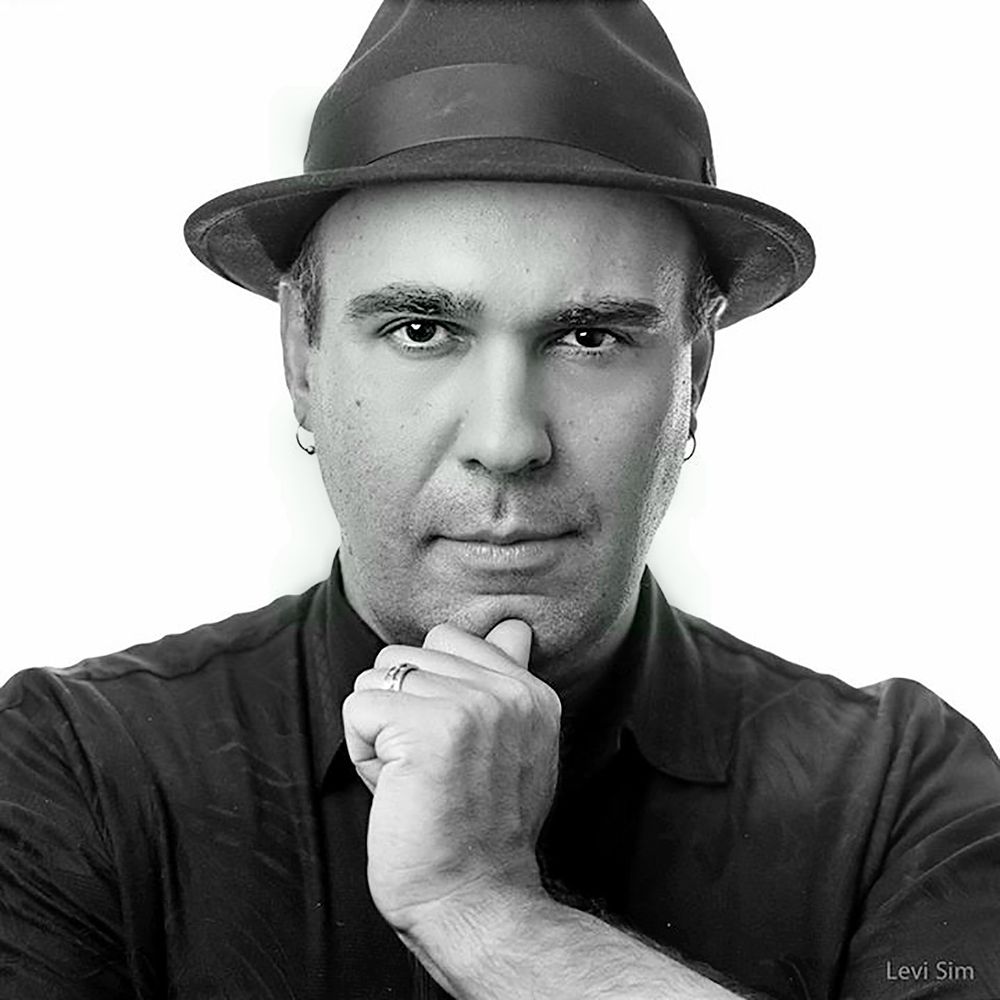
Richard Harrington, PMP
banner
thinktap.bsky.social
Richard Harrington, PMP
@thinktap.bsky.social
I'm a visual storyteller exploring the fusion of photography and video. I help empower creativity with AI. Husband & father | ThinkTAP
Playing Fair: Business Ethics for Creatives
Tools got cheaper. Markets got louder. The barrier to entry dropped—and that’s good. Fresh talent brings fresh ideas. But lower barriers don’t excuse lower standards. If we want a healthy creative industry, we have to protect it with sound business practices. Translation: play fair, price sustainably, credit properly, and treat people (and their time) with respect. This isn’t gatekeeping—it’s stewardship. Jump in, contribute, and please… don’t piss in the pool. 1) Price Fairly (for the Long Term) Charge in a way that lets you survive and improve, not just win this week’s bid. * Know your costs: insurance, gear, software, studio, payroll, taxes, education, admin. * Be consistent: publish rate ranges, stick to them, and explain what’s included. * Value, not just hours: complex, high-risk, fast-turn work costs more. * Say no to unsustainable asks; today’s “cheap win” becomes tomorrow’s expectation. Quick gut-check: If this price became your average, would you still be in business in 12 months? 2) Don’t Do Spec Work Unpaid “tests,” “points,” or “deferred comp” erode the market and your confidence. * Offer paid discovery (a small, scoped engagement) instead of free concepts. * If you must build portfolio, do self-initiated projects or donate to vetted nonprofits—with clear terms and boundaries. * Remember: other professions don’t work free to “prove interest.” Neither should you. Script to decline spec: “Thanks for the opportunity. I don’t do unpaid concepts, but I can offer a paid discovery sprint to shape the brief and creative direction. Here’s a scope and flat fee.” 3) Compete Without Trash Talk Your only real competition is yesterday’s version of your work. * Don’t badmouth peers; it lowers everyone—including you. * Credit collaborators openly. Attribute stock, music, fonts, and references. * Never pass someone else’s work or ideas as your own. If inspired, cite and transform. 4) Contracts First, Romance Second Great relationships still need clear agreements. * Scope: what’s in/out, deliverables, versions, acceptance criteria. * Schedule: milestones, review gates, client response times. * Budget: fees, expenses, contingency, change-order process. * Rights: usage, territory, duration, exclusivity, credit. * Protections: deposits, kill fees, limit of revisions, liability caps, indemnities. One-line trade-off: “To add X, we can either move the date, adjust the budget, or remove Y—your call.” 5) Your Problems Are Your Problems Be the person people want to hire again. * Pay subcontractors on time—even if your client is late. Don’t push your cash-flow issues downstream. * Share POs and timelines with your vendors so they can plan. * If something slips, communicate early with options, not excuses. 6) Be Transparent About Tools & Licenses Creativity is fueled by resources—use them ethically. * Buy and track licenses for stock, fonts, plugins, and music. * Deliver a simple rights sheet with each project: what was licensed, for how long, and where. * If you use AI or third-party services, disclose how and what that means for rights and privacy. Rights summary (copy/paste): * Asset → License type → Territory → Term → Notes → Renewal date 7) Act More Like a Lawyer (and Still Make Art) You’re a creative professional. Standards apply. * Communicate clearly, document decisions, and confirm in writing. * Protect confidentiality and client data. * Keep promises. Missed a date? Own it and present a recovery plan. * Keep learning—craft and business. Common Traps → Better Choices * Race to the bottom pricing → Set sustainable rates; educate clients on value. * Spec work → Offer paid discovery or do self-funded portfolio pieces. * Trash talk → Compete on craft and service; give credit generously. * “Pay when paid” → Pay your crew on schedule; build contingency for cash flow. * Handshake deals → Use written scopes, change orders, and clear rights. * License fog → Track assets and send a rights summary at delivery. The Creative Ethics Pledge (Steal This) * I price for sustainability, not undercutting. * I decline spec; I propose paid discovery. * I respect peers and credit collaborators. * I use written agreements and honor them. * I pay my team on time—no excuses. * I license assets properly and disclose constraints. * I communicate early, honestly, and professionally. Playing fair isn’t just “nice.” It’s how you build a resilient business, attract better clients, and leave the industry stronger than you found it.
dlvr.it
December 30, 2025 at 11:52 AM
Draw Your Animation with Motion Sketch in Adobe After Effects
Sometimes the Pen tool feels too clinical. Motion Sketch records your hand-drawn movement in real time—position and speed—so layers inherit that organic, human wobble you can’t fake with linear keyframes. What Motion Sketch does It captures a motion path (Position keyframes) as you draw in the Comp panel, including your timing. Perfect for drifting lower-thirds, flying UI chips, or handwriting reveals that should feel alive. Set up for a clean capture * Magnification: Set the Comp viewer to 100% or higher so you’re drawing at true scale. * Work Area: Trim the Work Area to the duration you want to sketch. * Select your layer, then open Window > Motion Sketch. * In the panel, enable Show Wireframe for responsiveness and Show Background if you need visual reference. * If you have a tablet, use it—Motion Sketch loves a pen. Capture Speed (the secret sauce) Capture Speed controls how long you get to draw relative to the Work Area: * Work Area = 4s, 100% capture → you have 4 seconds to draw. * 50% capture → 2 seconds to draw (faster pass). * 200% capture → 8 seconds to draw (slower, smoother hand movement). No matter what you pick, the animation plays back in real time across that 4-second Work Area. Most artists prefer above 100% for smoother, more controlled lines. Quick start (try this in a minute) * Make a new solid or shape layer; select it. * Window > Motion Sketch → Set Capture Speed to 200% and Smoothing to taste. * Click Start Capture and draw in the Comp panel (tablet recommended). * Preview (0 on numeric keypad). You’ll see natural acceleration/deceleration baked into the keyframes. Sync to sound while you draw Animating to a beat? In Time Controls, enable the Audio button so you hear playback during capture. Ride the rhythm and let timing guide your strokes. Make it prettier (refine after capture) * Smoothing: If the path jitters, raise Smoothing in Motion Sketch or use Window > Smoother on the selected motion path. * Speed Graph: Open the Graph Editor to even out spikes without losing character. * Auto-Orient: For arrows/planes, set Layer > Transform > Auto-Orient > Along Path to have rotation follow your curve. * Motion Blur: Flip it on to sell speed and soften wiggles just enough. Pro tips & pitfalls * Zoom with intent: If your line strains off-screen, you’re probably not at 100%—reset magnification and try again. * Separate clean-up pass: Sketch once for shape, then adjust a few keyframes (or influence handles) instead of re-drawing endlessly. * Tablet pressure: Vary your hand speed, not the pressure—Motion Sketch captures timing, not stroke thickness. * Pen vs. Pen tool: If you need geometric precision after the fact, you can still edit the spatial Beziers like any other motion path. Motion Sketch is your shortcut to animation with personality. Draw it once, smooth it a touch, and let After Effects keep the vibe you put in with your hand.
dlvr.it
December 28, 2025 at 8:42 PM
Building an Electronic Portfolio (That Actually Books Work)
If you want creative work, you need proof—a portfolio. Resumés and recommendations get you in the room; a tight body of work closes the deal. I’ve hired for agencies and my own shop, and the pattern is consistent: the pros who show clear outcomes, clean presentation, and easy contact paths get the call. Below is a practical playbook for artists—designers, photographers, illustrators, editors, motion folks—to build a portfolio that moves a client from “interesting” to “let’s talk.” What Clients Look For (in 30 seconds or less) * Taste: a consistent point of view and finish. * Relevance: samples similar to their need. * Process: how you think (a few captions go a long way). * Reliability: credits, dates, roles, and who did what. * Access: a big Contact button and response expectations. What to Include (and What to Cut) * Your top 8–12 pieces, max. Curate hard. If it’s not a hell-yes, it’s a no. * Case-study flavor: 3–6 images per project (or a 30–60s cut) with short captions: goal → your role → result. * Range without whiplash: show variety, not randomness. * Real-world work beats exercises. No “fan art” unless transformed and legally safe. * Credit collaborators. Your role is part of your value; own it. Kill list: old student pieces, inside jokes, unlicensed assets, anything you wouldn’t replicate for pay. Three Formats That Cover 99% of Needs 1) Printed (for in-person) * Portable and durable: 11×14 or smaller; sturdy sleeves. * Sequenced: open strong, build a rhythm, close strongest. * Leave-behind: a one-page highlights sheet with a QR to your site. 2) PDF Portfolio (for quick sharing) * One file, under ~15–20 MB. * 10–15 pages: cover → 8–12 projects → contact. * Live links: project anchors to your site or reel. * Security: flatten or downsample if you’re worried about asset scraping. Workflow tip: Generate decks from your DAM or use Bridge/InDesign/Keynote to export consistent PDFs with live links and a small footprint. 3) Online (your 24/7 storefront) * Fast, mobile-friendly, accessible. Test on a phone first. * Clear nav: Work • About • Services • Contact. * Project pages: hero, 3–6 images or a short embed, captions, credits, and tools used. * Lead capture: short inquiry form; calendar link for 15-minute calls. For Moving-Image Artists (Editors/Mograph/DPs) * Reel: 45–75 seconds, front-load your best 10. * Project cuts: 2–3 strong pieces with context and credits. * Specs & deliverables: list formats, aspect ratios, captions/SDH if relevant. Captions That Sell (Copy/Paste Template) * Client / Project * Brief: one line on the problem. * Role: what you owned (designer, photographer, editor, AD). * Solution: 1–2 lines on approach. * Result: metric or outcome (increased sign-ups 18%, won X award, sold out event). * Credits: collaborators/vendors. Maintenance Schedule (Because portfolios rot) * Quarterly prune: remove the weakest piece, add one new win. * Update bio & services: pricing signals and availability windows. * Refresh thumbnails: first impressions live in tiny rectangles. Ten-Day Build Sprint (No more procrastination) Day 1: List 15 projects; pick 10. Day 2: Gather masters, exports, credits, metrics. Day 3: Write captions using the template. Day 4: Design a PDF (cover, grid, contact). Day 5: Build/update your site structure and two project pages. Day 6: Export the PDF under 20 MB; test links. Day 7: Create a 60–90s reel or a “greatest hits” gallery. Day 8: Accessibility + mobile pass; fix load times. Day 9: Peer review with two trusted creatives; incorporate notes. Day 10: Publish. Add the link to your email signature and social bios. Common Pitfalls → Quick Fixes * Too much work → Cap at 12; sequence with intent. * No context → Add captions; clients hire your thinking. * Burying contact info → Button on every page. * Outdated pieces → Schedule quarterly pruning. * Illegible rights → Replace questionable assets; add credits. Build the portfolio you would hire: clear, credible, and easy to act on. Curate hard, explain briefly, and make contacting you effortless. Do that, and your portfolio stops being a gallery—and starts being a sales engine.
dlvr.it
December 28, 2025 at 4:17 PM
Save Everything: Animation Presets in Adobe After Effects
Effect combos and tweaks you love shouldn’t live only in one timeline. Animation Presets (.ffx) let you package up effects, settings, keyframes—even expressions—and reuse them anywhere, anytime. They replaced old “Effect Favorites” and cover far more than just filters. What a preset can hold * Effects (with all their settings) * Properties & Property Groups (Transform, Text Animators, Shape groups, etc.) * Keyframes (timing and values) * Expressions (yes, they come along for the ride) Because presets are saved as .ffx files on disk (think Photoshop Actions), they work across comps and projects—and they’re easy to back up. Create your own (step by step) * Select the exact things you want to preserve: effects, properties, or whole property groups on a layer. * Choose Animation > Save Animation Preset… (or click Save Animation Preset in the Effects & Presets panel). * Name it clearly and be sure it ends with .ffx. * Save it to your User Presets/Favorites folder. You can make subfolders—they’ll show up as categories in Effects & Presets. If you had older “Favorites,” they’re automatically promoted to Animation Presets. Apply them fast * Drag from Effects & Presets > Animation Presets onto a layer. * Or choose Animation > Apply Animation Preset… and pick the .ffx. * Double-click a preset to apply it to the currently selected layer. A 60-second workflow I use * Build a look once (say, “Punchy Text Reveal” with blur, glow, and text animators). * Select the relevant effects + properties on that layer. * Save Animation Preset… into a Branding/Text subfolder. * On the next project, drag that preset onto any text layer—instant, consistent results. Pro tips & pitfalls * Scope smartly: Only select what matters. If you include Position/Scale keyframes by accident, they’ll overwrite a target layer’s transforms. * Resolution awareness: Keyframes save exact values, so a 4K-tuned motion may feel different at 1080p. Tweak once, then resave the updated preset. * Expressions that travel: Most property-linked expressions retarget fine; effects named differently can break. Keep match names standard and consider comments for future you. * Organize now, fly later: Use subfolders (Color, Text, Transitions, Utility) so the Effects & Presets panel stays clean. * Back it up: Copy your User Presets folder to cloud or version control—reinstalls and machine swaps won’t touch your library if you’ve got a backup. Save once. Reuse forever. With Animation Presets, your best looks become buttons you can press—speeding delivery and keeping your motion design consistently on brand.
dlvr.it
December 26, 2025 at 5:02 PM
Radiant TrueSelf Camera: A Safer, Healthier Camera for the Children You Love
This is a reshare about a project I’ve been working on for a long time. Why this camera—and why now Kids are swimming in a sea of filters, face morphs, and “ideal” looks that no real human can maintain. The result isn’t just unrealistic pictures—it’s a real mental-health and body-image problem. * In CDC’s 2023 survey, 4 in 10 U.S. high schoolers reported persistent sadness or hopelessness in the past year, and about 1 in 5 adolescents screened positive for recent anxiety or depression symptoms. (CDC) * An Australian survey (Butterfly Foundation) found 90% of teenagers had some level of body image concern, with about 38% “very or extremely” concerned. Butterfly Foundation * The U.S. Surgeon General has warned that social media can amplify body dissatisfaction and mental-health risks, and called for concrete steps families and tech companies can take. (HHS) * Eating disorders are serious, sometimes fatal illnesses; adolescence is a common age of onset. Families need tools that don’t fuel harmful appearance pressures. (National Institute of Mental Health) * Large-scale surveys of girls show toxic beauty advice and appearance-focused feeds lower self-esteem and worsen body image. (dove) * Reviews report 4–12% of high school boys in some samples have used anabolic steroids at least once. Looksmax+1 Radiant TrueSelf Camera is our response: a camera that celebrates authenticity, guards privacy, and keeps kids in the creative loop without pushing them toward distortion or perfectionism. What is Radiant TrueSelf Camera? Be seen as you truly are. Built on Apple’s excellent camera tech and enhanced by Radiant’s image science, TrueSelf delivers portraits that feel true, natural, and alive—so your child’s style and personality shine, not a one-size-fits-all “beauty” template. * Creative Looks, not masks. Curated “Lenses” set mood and vibe—subtle to bold—while keeping faces real. * AI fixes only (no face distortion). Smart exposure, gentle skin shine/blemish reduction, and inclusive color for all skin tones. No body-shaping, no face warping—ever. * Healthy by design. Results look like what a pro would choose: flattering light, honest color, intact texture. * Private by default. Processing is on-device—no cloud upload for editing; no watermarks; no ads. Why parents & grandparents love it Safer sharing by default. When kids share images, we strip face tags, GPS, timestamps, and other PII. We also set a “NOAI” metadata flag to discourage use in AI training. Photos only leave the device when your child uses the OS Share menu. Data respect. The app does not store or upload your family’s images for editing. Radiant Imaging Labs never inspects your images. You stay in control. Healthy body image. The app ships without body-shaping tools. We include links to nonprofit resources on youth mental health and self-care so families have somewhere credible to go if concerns arise. (For context on why this matters, see the CDC and Surgeon General advisories linked in citations.) (CDC) Simple, joyful workflow Shoot → Swipe → Share * Capture with the built-in camera; the Radiant editor opens automatically. * Suggest. On-device analysis offers context-aware refinements that preserve natural tones, texture, and mood. * Swipe through portrait styles (audition quickly with Lenses). * Refine with one slider—or open advanced tools (paid) for precision. * Save non-destructively to the Photos library and share anywhere. All tools support a speed-editing mode—quick, confident edits with one thumb. What’s free and what’s paid Designed for Gen Alpha and Gen Z—with pricing that respects family budgets. We include a generous free tier so kids can create without ads or gimmicks, and an optional upgrade for power users. Cropping and using built-in lenses (witht he refine slider) is free. Using advanced tools like custom LOOKs needs a subscription. Allowed on First Install (Free) * Change Lenses (curated looks) * Refine Slider on each Lens * Crop * Saving of Photos (non-destructive, metadata-safe) We unlock 250+ image styles and full photo saving because we want this camera in the world, shaping healthier habits—not locked behind a paywall. Requires Purchase (TrueSelf Plus) * Lens Editor (customize and save your own recipes) * Detailed Editor (expanded tools and custom LOOKs) * Saving of Files (Video) Why this model (and mission): We expect some users will choose a subscription for lower upfront cost, but we’ll also offer a reasonable one-time Lifetime option.  Choose Free or Plus * Free (forever): Use built-in recipes and auto-enhance tools. No ads. No watermarks. * Plus (upgrade): Customize with Lens Editor, unlock advanced tools and LOOKs, and enhance/share video. * Available via in-app purchase: monthly/annual or one-time Lifetime. (Pricing varies by region.) I really enjoyed working with my daughter to make this app. She always reminds me to strive to be more caring of those who are different. What makes it different (for you and for them) * Authenticity over alteration. Subtle skin shine/blemish reduction and even exposure—no body morphs. * On-device privacy. No cloud editing. PII stripped on share. NOAI flag in metadata by default. * Inclusive by design. Color rendering crafted to flatter all skin tones. * Positive culture. We surface mental-health and self-care resources right in the app—because pictures should lift us up, not wear us down. (Research repeatedly links appearance-focused feeds to lower self-esteem; we’re building the opposite.) (dove) A quick note on the problem we’re trying to fix If you’ve watched a teen retake the same selfie ten times, you’ve seen the pressure firsthand. National data show rising diagnoses of anxiety and depression in adolescents over the last decade, with notable increases since 2016; body dissatisfaction and appearance-focused social content are part of that story. Tools matter—and so do defaults. (MCHB) TrueSelf Camera can’t keep kids offline, but it can make a healthier camera: honest faces, safer shares, and creative control without distortion. Final word from our team We built Radiant TrueSelf Camera to help kids show up as themselves—with flattering light, honest color, and privacy by default. If you’re a parent or grandparent, we’d love your feedback as we finish development. Together, we can make everyday photos kinder to the people in them. Sources & further reading * CDC, Youth Mental Health: The Numbers (2023 YRBS snapshot). (CDC) * CDC, Data and Statistics on Children’s Mental Health (adolescents 2021–2023). (CDC) * U.S. Surgeon General, Social Media and Youth Mental Health (Advisory and actions for families). (HHS) * NIMH, Eating Disorders—Statistics & Age of Onset. (National Institute of Mental Health) * National Eating Disorders Association (overview and prevalence). (National Eating Disorders Association) * Dove Self-Esteem Project, Social media & body image statistics; #NoDigitalDistortion. (dove)
dlvr.it
December 26, 2025 at 5:45 AM
Case Study: Designing Camera Apps and Upsells
Bringing a new slate of photo editing apps to market is equal parts product design, ethics, and revenue strategy. This case study from Radiant Imaging Labs explains how we’re positioning multiple camera apps for sale, what we’re gating, and why each approach fits its audience. You’ll see the exact levers we’re pulling—so you can adapt them to your own imaging or software projects. Creating gates For our apps, we needed to create a series of gates we could open or close. Think of these as business-model toggles you map to real user value. * Paid app — The app is sold as a one-time purchase. Ideal for premium tools aimed at a specific, refined group that values ownership. * In-app content — Core functionality is unlocked in the app; the user buys only what they want (e.g., lenses, packs, styles). * Feature locked — Certain capabilities (advanced editors, pro outputs) require a purchase or subscription to unlock. * Ad supported — The app is free, but ads are shown to the user. (We generally avoid this for creation tools; more on that later.) * Sponsored apps — An organization funds free access to raise awareness for their business or cause. Opt-in lead collection is often part of the model. Translating to camera & photo editing apps To make these gates tangible, we defined a set of Flags we can turn on or off per app and per audience. * Change Lens A lens is a curated set of creative and problem-solving edits—smart presets guided by on-device AI and scene detection so settings map intelligently to each image. * Refine Slider on Lens One global strength control that lets users dial a lens up or down quickly. * Lens Editor A streamlined set of edit controls derived from the active lens. Optimized for one-thumb refinement and fast iteration. * Detailed Editor The full toolkit for advanced users—granular tone, color, and local controls typically used with two hands. * Saving of Files Try the tools freely; require a one-time purchase or subscription to save photos or videos with enhanced settings. A case study of several apps At Radiant Imaging Labs, we’re bringing several different apps to market. Each targets a distinct audience—some broad, some very specific. We’ll share more after release, but here’s how we’re configuring four of them right now. Pet AI: Photo & Video Editor Every pet has a story—a wag, a glance, that playful blur of motion. Radiant Pet Camera (Pet AI: Photo & Video Editor) captures those moments with pet-first exposure, smart scene detection, and on-device AI for natural, true-to-life results. Allowed with Free Install * Change Lenses * Refine Slider on Lens * Crop * Saving of Photos Requires Purchase * Lens Editor * Detailed Editor * Saving of Video Files Why this model Most people have dogs or cats or snakes—not all three. We offer one-time purchases of single lenses organized by species, plus an all-lenses bundle for multi-species households. We chose one-time purchase to simplify decisions for a mainstream audience new to pet-focused creation tools. Radiant Monochrome Camera Radiant Monochrome Camera is built for photographers who believe black and white is the purest expression of light. With intelligent tone mapping, fine-grain control, and film-inspired looks, you can sculpt images from deep cinematic blacks to delicate silver highlights—with fidelity and control. Model One-time Purchase with In-App Purchases. * Base app includes 4 lenses with 64 film simulations to explore. * Additional packs are one-time purchases and can be bought individually. * A Super Pack includes all current and future lenses. Why this model This audience is passionate and quality-driven. We wanted broad affordability and a sense of ownership, while giving enthusiasts a deep runway to grow. Radiant TrueSelf Camera In an era of over-filtered faces and generic “beauty,” Radiant TrueSelf Camera celebrates authenticity. Built on Apple’s camera tech and enhanced by Radiant’s image science, it delivers portraits that feel true, natural, and alive—so your style and personality shine. Audience & Pricing Designed for Gen Alpha and Gen Z—priced aggressively with a generous free tier. Allowed on First Install * Change Lenses * Refine Slider on Lens * Crop * Saving of Photos Requires Purchase * Lens Editor * Detailed Editor * Saving of Files (Video) Why this model (and mission) We expect many users to choose subscription for lower upfront cost, but we include a reasonable one-time buy as well. More than 250 image styles and full photo saving are unlocked because we want this camera in the world. We’re shipping light, natural skin enhancements only (shine/blemish reduction), even exposure, and inclusive color rendering for all skin tones. No body-shaping tools. We also include links to nonprofit resources on youth mental health and healthy self-care. For parents, we add safety by default. When images are shared, we remove face tags, GPS data, timestamps, and other PII by default. We also set a “NOAI” flag in metadata to discourage use in AI training. We can’t keep kids offline—but we can make a safer camera. Birder Camera by Radiant Photo There’s a magic to photographing birds—the patience, the precision, the split-second when beauty takes wing. Radiant Birder Camera is built for that moment with bird-first exposure, wide dynamic range, and pro-level control on iPhone/iPad. Why it’s premium Bird photographers invest serious time and money. We also spent six months building a custom AI that recognizes classes of birds and their backgrounds (dual-axis) to suggest the best editing settings. Model Free to download. The refined in-app camera is fully functionable and all editing tools are fully previewable. To save images, the user must purchase the app or subscribe monthly/annually. Seeing is believing—and this model sustains the heavy R&D behind it. Making it all work Under the hood, all of these flags are implemented as in-app events or products. We connect them to Adapty, a sales management platform, so we can adjust pricing, copy, and creative on the fly. That enables rapid A/B testing of upsells, visuals, and offers—helping each app find its own perfect balance of free and premium. By mixing models and continuously testing, we’re confident we’ll discover the right combinations for each audience. What about those other models? Ad supported — Apps are free but ads are shown to the user. We avoid this approach—and many users do too. In creative contexts, ads compete with the focused attention great images require. If you must explore ads, prioritize placements that don’t interrupt capture or editing, and measure attention, not just impressions. Sponsored apps — A company makes the app free to raise awareness; lead collection is common. We plan several of these. For example, premium pet stores could license a Pet AI variant with: * Opt-in lead capture * In-store coupons * A newsletter or weekly flyer We may license the app for a fee or pursue aggressive co-promotion. The broader strategy: let people discover us locally (e.g., at the pet store), then bring us along on their next family vacation—across our mobile cameras and desktop software. More to Share We have a lot to cover as we roll these out through year’s end—and more models to experiment with in 2026. What excites me most is the solid core foundation we’ve built: one imaging engine we can customize with the right lenses, branding, and onboarding for each audience. As we learn, we’ll dynamically update onboarding and the purchase experience. In this era, data-informed beats guesswork—so we’ll keep testing, refining, and sharing what works.
dlvr.it
December 26, 2025 at 2:07 AM
Color Grading in Radiant Photo
I am the Chief Product Officer for Radiant Photo... let me share a little about how we handle color... both the technical and creative process. This is not a tutorial, more a look inside the process of creation. How a Looks Pack Comes to Life At Radiant Imaging Labs, we’re big fans of color—color theory, film history, and the way a good grade can steer emotion without saying a word. We’re also deeply in love with black-and-white and the creativity it unlocks. At Radiant Imaging Labs, my job is to design the products we bring to life. It’s always a team effort—across product, engineering, design, and QA—but it’s on me to make sure that what we release is top-quality. Where does color fit in? We use Looks. Looks are powered by LUTs—Lookup Tables—which map one set of color and tone values to another. Think of a LUT as a translator: “When you see this red at this brightness, turn it into that red at that brightness.” In film and video, LUTs have been a staple for decades. They can be technical (to normalize footage from a specific camera or color space) or creative (to emulate a film stock, push a mood, or build a signature palette). The first product I built Looks for was Perfectly Clear. Later, I designed many of the Looks that shipped with Aurora HDR and Luminar at Skylum. I love the idea that you can encapsulate a creative intent—taste, really—into a single file and share it. --- Only the Smart Editing tools are used here.  Image Segmentation creates the masks used to precisely target areas like the sky and foreground for independent adjustment.  A detailed analysis and computation balances image details and colors while still offering control to the end user. How do we prepare for color grading? In Radiant Photo, we made LUTs incredibly flexible—and we made sure they sit in the right place in the pipeline. Rendering order (how Radiant enhances an image): * Smart Editing Start with the Enhance and Color controls. These do the heavy lifting—exposure balance, color fidelity, and detail optimization—so your image lands at a clean, natural starting point. * Adaptive Adjustments  Next, a set of responsive tools address tone, color imbalances, and—when present—skin rendering. These tools are adaptive to image content, but you’re always in charge of how far they go. At this stage, your photo should look natural—often better than the camera’s default processing and closer to how you remember the scene. This standardization (consistent tone, exposure, and white balance) makes color grading faster and more predictable. Both Smart Editing and Adaptive Adjustments were applied to restore the color and shadow detail that I remember when taking this photo. Color grading = manipulating color and tone to create an emotional mood or emulate a traditional film stock. Now you’re ready for Color Grading—a finishing step that adds style. You’ll find Looks for film emulation, black-and-white, and creative color treatments. How do we use LUTs. In Radiant Photo, LUTs are delivered as Looks. They’re independent of other controls, which means you can finish your technical edit first, then audition creative styles without disturbing your base corrections. LUTs are independent of the settings used to develop an image.  This means that you can combine them with the Develop Settings or Presets quite easily. Try this workflow: * Develop your initial image. * Open the Color Grading tool. * Browse Look collections via thumbnails to preview styles. * Pick a Look and fine-tune with three simple, powerful sliders: * Strength — Controls intensity. As a starting point, try 50–75. For Black & White Looks, begin at 100. * Saturation — Ranges –100 to 100. This adjusts how much the Look colorizes the image. (Tip: Any color Look can be pushed to monochrome or anywhere in between.) * Contrast — Ranges –100 to 100. Adds or subtracts contrast introduced by the Look so you can keep depth without crushing detail. You can switch between Looks freely—the Strength, Saturation, and Contrast settings you’ve set will persist. This makes it easy to lock in a general “feel,” then click through variations while maintaining the same relative balance. The sheer variety you can coax from a single Look file is surprising. Subtle nudge, bold grade, clean monochrome—it’s all there with three controls. Common pitfalls & quick fixes * Looks feel “too much”: Lower Strength first; if skin tones still feel hot, reduce Saturation slightly. * Crushed shadows or clipped highlights: Pull Contrast toward zero, then revisit Strength. * Color cast after applying a Look: Use your base Tint/White Balance or Radiant’s Tint Correction before grading to neutralize—then re-apply the Look. How do we make LUTs? There are many ways to make a LUT—some NLEs can export them, and yes, even AI tools can help. Here’s the process I rely on most. On a recent trip t London with my wife and daughter we visited a wide range of museums. These served as a great inspiration for color palettes to capture. Step 1: Find inspiration Museums, travel, a walk in the woods—anywhere the light or palette makes me feel something. I’m looking for mood first, specific colors second. Step 2: Capture references  I like using Adobe Capture to photograph color moments and generate starter LUTs. These sync to a Creative Cloud library and give me a quick “seed” of a palette to explore. Step 3: Build it up in Photoshop I open a grid of representative images—portraits for people-centric Looks, landscapes for travel Looks, etc. No LUT works for everything, but versatility matters. * Add a Color Lookup adjustment with the captured LUT. * Stack additional Adjustment Layers—Curves, Selective Color, Vibrance, etc. * Blend and refine with opacity and blend modes to shape tone and palette. Step 4: Export a LUT Use Photoshop’s export command to bake your adjustment stack into a LUT. This first pass is close—but not finished. Step 5: Refine in a LUT editor I open the LUT in Lattice to visualize curves and the 3D color cube. Here I smooth jagged transitions, tame overshoots, and nudge channels to avoid artifacts like banding, crushed color, or posterization. A good creative LUT should be expressive and stable. Step 6: Organize & name We package Looks into themed packs and give them memorable names. We used to go with “Teal & Orange 1–5.” Now we have more fun—names that suggest mood and use case. Internally we even use a tiny name-brainstorming GPT to spark directions. Step 7: Test, then test again Fresh eyes are priceless. Our team pushes the Looks on all kinds of images, with sliders at conservative and extreme values. If anything breaks—strange edges, plastic skin, clipped channels—we polish again. Step 8: Pack & share We build installers, prepare before/after demos, and create web previews so you can audition packs before you buy. We want our customers to feel confident in their creative purchases (but we still offer a money-back return policy since creativity is personal). Seems Like a Lot? Plenty of presets out there are made fast and shipped faster. That’s not us. Radiant Imaging Labs is owned and run by photographers who love making images. The settings we ship are meant to inspire and hold up under real-world use. That means robust design, careful testing, and flexibility built in. Is that the end of Color Grading? Looks are often the final creative step—but we really love color. You’ll also find: * Adjustable Gradient for vignettes, graduated filters, and power windows—with tonal and color refinements right in the mask. * A full set of Finishing Tools at the end, mirroring what you expect from pro photo apps—subtle halation, grain, sharpening, and more to unify the image. These tools let you localize and polish after you’ve set the global style. How does this all work together? We’re often asked why we don’t have more sliders. Two reasons: * Clarity over clutter  You don’t judge a camera by how many buttons it has, or a car by the number of pedals. We’d rather give you the right controls in the right order. * Maximum image fidelity Radiant works in 16-bit color, and each stage of editing is independent. You can tweak AI Smart Editing, Refine Controls, Color Grading, or Finishing in any order—your changes flow through one concatenated processing pipeline. Many apps re-render after each step, degrading pixels and slowing you down. We don’t. Your photo is processed once, which preserves quality and keeps edits fully adjustable.

dlvr.it
December 25, 2025 at 9:36 PM
The Video Director Needs to Be Confident (Without Being a Jerk)
Clients hire certainty. Crews follow clarity. Video is a team sport, and on set the team needs a captain—a director who can turn vision into decisions under pressure. You can be thoughtful and still be decisive. In fact, that’s the job. Confidence isn’t pretending to know everything. It’s showing you have a plan, a backup plan, and the composure to pick one in real time. Preparation Makes Confidence Walk in with these five packets and your day gets calmer: * One-Sentence Story: What this piece must make the audience feel or do. (Say it at breakfast. Repeat at lunch.) * Coverage Priorities: Must-haves, nice-to-haves, and stretch shots. When time shrinks, you already know what to cut. * Shot Plan & Decision Ladder: A/ B options for lighting, blocking, and lenses; who decides what (you, DP, AD, client). * Risk Map: Three likely problems (weather, talent, tech). Mitigation and owners are preassigned. * Comms Cadence: 5-minute crew huddle at call, after lunch, and before company move; single point for approvals. On-Set Behaviors That Project Calm * Use command phrases that reduce ambiguity: * “Here’s the plan for the next 20 minutes…” * “Two options: A gets us performance; B gets us coverage. I recommend A.” * “We have it. Moving on.” * Decide fast, adjust later: Momentum beats perfection. Get the take that serves the edit, then refine if time allows. * Protect performance: If the actor is hot, keep rolling. Adjust lights between takes, not during. * Delegate visibly: “AD owns time. DP owns the picture. Mixer owns intelligibility. Flag issues early.” * Close loops: Summarize decisions out loud so everyone resets in the same direction. When You Don’t Know (Yet) You will hit new problems—every project, every week. Do this: * Name the problem in plain English. * Time-box a solution window: “Give me 10 minutes.” * Spin up A/B: “If we’re not good by 11:10, we pivot to handheld and adjust blocking.” * Assign owners: “DP tests ISO at 800/1250; Gaffer preps negative fill; AD updates schedule.” * Communicate back on the minute, even if the update is “Plan B now.” Banned phrase: “I don’t know.” Better: “I’ll find out by 10:45 and report back with options.” The Director’s Confidence Kit * Printed call sheet + shot list + coverage matrix * Lookbook & references (so debates end quickly) * Backup media + checksum workflow * Finish specs (frame size, color space, loudness, captions) to guide decisions on set Common Pitfalls (and the Fix) * Vague vision → Start each block with a 1-line headline; repeat it. * Decision drag → Offer two viable options; recommend one; call the play. * Over-politeness → Be kind and clear. Soft voice, hard decisions. * Learning on the client’s dime → Practice new techniques on test days; use proven methods when money’s on the line. * Endless takes → Define “got it” with your editor’s brain; move on to protect the schedule. Confidence is clarity plus practice under pressure. Be decisive, be specific, and be the calmest person in the room. The work—and your team—will rise to meet you.
dlvr.it
December 23, 2025 at 9:28 PM
It’s Ease-y in Adobe After Effects
Keyframe easing is the candy of motion design—sweet, addictive, and best used with intention. The Ease assistants give you quick, natural acceleration and deceleration, and you can always refine the curve after the fact. What the Ease assistants do * Easy Ease — Gently eases into and out of the keyframe for smooth starts and finishes. * Easy Ease In — Slows into the keyframe, coming to a gradual stop. * Easy Ease Out — Adds inertia out of the keyframe, easing up from a standstill. Apply them via Animation > Keyframe Assistant > (choice) after selecting the keyframe(s). You’ll see the keyframe icon change shape to indicate temporal Bezier interpolation. Quick demo you can try now * Make motion: On a layer, set two Position keyframes (linear by default). * Preview: Do a RAM Preview (press 0 on the numeric keypad) and notice constant speed. * Ease it: Select the second keyframe and choose Animation > Keyframe Assistant > Easy Ease In. * Preview again: The layer now decelerates into the end point. You’ll also see more dots clustered near the last keyframe on the motion path—those dots indicate samples over time, so higher density = slower velocity near the stop. The spatial path stays linear; the temporal interpolation becomes Bezier for speed changes. Make it yours (fine-tuning) * Open the Graph Editor and switch to Speed Graph to see the ramp. * Select an eased keyframe and use Keyframe Velocity… (right-click a keyframe) to adjust Influence and Incoming/Outgoing Velocity for sharper or softer curves. * Easing works on any property—opacity, rotation, effects—not just Position. A 60-second “tasteful ease” recipe * Block your animation linear first to lock timing. * Apply Easy Ease to both ends; preview. * Nudge the curve: increase Incoming Influence on the end keyframe for a cushier landing; refine in the Speed Graph. * Flip on Motion Blur to sell the movement once the timing feels right. Pro tips & pitfalls * Don’t over-syrup it: Too much ease can feel sluggish—use stronger curves on short moves, lighter on long moves. * Ease selectively: Often you only need Ease Out on the first keyframe and Ease In on the second for classic “move-and-settle.” * Consistent character: Save favorite curves as Animation Presets to keep a unified feel across shots. * Mind the beats: Let audio or edit points dictate where you accelerate and coast—ease should serve rhythm, not fight it. Treat easing like seasoning—enough to enhance, not overwhelm. With a few well-placed assistants and a peek at the Graph Editor, your animation goes from mechanical to cinematic in minutes.
dlvr.it
December 21, 2025 at 8:52 PM
Billing: Progress Payments That Protect You
Video eats cash before clients see cuts. Make billing predictable with milestone invoices tied to real deliverables—not vibes. Default Schedule (Full-Service) * Initiation — 20%: signed SOW/PO. * Preproduction — 20%: script/boards/schedule delivered. * Production — 30%: day 1 of shoot (collect before media release). * Post Start — 20%: edit begins (watermark until ≥66% collected). * Closeout — 10%: final approval + change orders. Thresholds: no camera originals or unwatermarked finals until ≥50% received; no final masters until balance ≤10%. Shorter Jobs * 50/30/20 (deposit / shoot-or-edit start / final), or Shoot-only: 50/50 with payment before media handoff. * Retainers: due on the 1st; bill overages weekly. Put It in the Contract * Payment schedule + triggers * Net terms (Net 7/15), late fees, deposits/kill fees * Change-order process * Rights released upon final payment * Single client approver per gate Ops Rules (Every Job) * Invoice before big costs (shoots, rentals, travel). * Watermark review files until payment thresholds. * Hold delivery if invoices age out. * Log changes and price them before work. Do This Today Update your SOW template with the schedule, thresholds, and rights language; create three canned emails (pre-pro invoice, production-day reminder, gentle nudge). Make cash flow boring—so you can focus on the work.
dlvr.it
December 21, 2025 at 5:20 PM
Healthy Parent/Child Relationships in Adobe After Effects
Once upon a time, grouping layers meant precomps and nesting. Today, parenting lets one layer hand down its transforms to others—Position, Scale, Rotation (not Opacity)—so you can move whole rigs as one while each child keeps its own independent animation. How parenting works (think anatomy) Your body → arm → hand → fingers. Wiggle the fingers (child-only animation), move the hand (children follow), swing the arm (everyone follows), shift the body (the whole chain follows). One parent can control many children, but a child can have only one parent. Set it up fast * If you don’t see it, right-click any timeline header and enable Columns > Parent & Link. * Pick Whip from the child to the desired parent, or choose a parent from the None dropdown. * Parenting multiple layers? Multi-select the children, then set the parent once—AE applies it to all. A 60-second rig recipe * Create a Null Object; name it Controller. * Parent related layers (title elements, lower-third pieces, a character’s arm chain) to the Null. * Animate the Null for global moves; add per-layer animation on children for fine detail. Pro tips & pitfalls * Maintain alignment: If a child jumps when you parent it, you likely moved anchors inconsistently—reset or align anchors first. * Stack parents smartly: Build simple chains (Body → Arm → Hand → Fingers) to keep edits predictable. * Opacity is independent: Parent controls don’t affect Opacity—keyframe it on the child or the parent separately. * Parenting isn’t keyframable: To stop parenting mid-shot, split the layer at the cut point and set Parent: None on the second piece. * Shy the controllers: Toggle Shy on helper Nulls to keep your timeline clean. Parenting replaces messy precomping for most rigs. Set up a solid hierarchy once, and your whole design moves like a single, well-tuned instrument—precise when you need it, flexible when you don’t.
dlvr.it
December 19, 2025 at 5:12 PM
Building an Electronic Portfolio (That Actually Books Work)
If you want creative work, you need proof—a portfolio. Resumés and recommendations get you in the room; a tight body of work closes the deal. I’ve hired for agencies and my own shop, and the pattern is consistent: the pros who show clear outcomes, clean presentation, and easy contact paths get the call. Below is a practical playbook for artists—designers, photographers, illustrators, editors, motion folks—to build a portfolio that moves a client from “interesting” to “let’s talk.” What Clients Look For (in 30 seconds or less) * Taste: a consistent point of view and finish. * Relevance: samples similar to their need. * Process: how you think (a few captions go a long way). * Reliability: credits, dates, roles, and who did what. * Access: a big Contact button and response expectations. What to Include (and What to Cut) * Your top 8–12 pieces, max. Curate hard. If it’s not a hell-yes, it’s a no. * Case-study flavor: 3–6 images per project (or a 30–60s cut) with short captions: goal → your role → result. * Range without whiplash: show variety, not randomness. * Real-world work beats exercises. No “fan art” unless transformed and legally safe. * Credit collaborators. Your role is part of your value; own it. Kill list: old student pieces, inside jokes, unlicensed assets, anything you wouldn’t replicate for pay. Three Formats That Cover 99% of Needs 1) Printed (for in-person) * Portable and durable: 11×14 or smaller; sturdy sleeves. * Sequenced: open strong, build a rhythm, close strongest. * Leave-behind: a one-page highlights sheet with a QR to your site. 2) PDF Portfolio (for quick sharing) * One file, under ~15–20 MB. * 10–15 pages: cover → 8–12 projects → contact. * Live links: project anchors to your site or reel. * Security: flatten or downsample if you’re worried about asset scraping. Workflow tip: Generate decks from your DAM or use Bridge/InDesign/Keynote to export consistent PDFs with live links and a small footprint. 3) Online (your 24/7 storefront) * Fast, mobile-friendly, accessible. Test on a phone first. * Clear nav: Work • About • Services • Contact. * Project pages: hero, 3–6 images or a short embed, captions, credits, and tools used. * Lead capture: short inquiry form; calendar link for 15-minute calls. For Moving-Image Artists (Editors/Mograph/DPs) * Reel: 45–75 seconds, front-load your best 10. * Project cuts: 2–3 strong pieces with context and credits. * Specs & deliverables: list formats, aspect ratios, captions/SDH if relevant. Captions That Sell (Copy/Paste Template) * Client / Project * Brief: one line on the problem. * Role: what you owned (designer, photographer, editor, AD). * Solution: 1–2 lines on approach. * Result: metric or outcome (increased sign-ups 18%, won X award, sold out event). * Credits: collaborators/vendors. Maintenance Schedule (Because portfolios rot) * Quarterly prune: remove the weakest piece, add one new win. * Update bio & services: pricing signals and availability windows. * Refresh thumbnails: first impressions live in tiny rectangles. Ten-Day Build Sprint (No more procrastination) Day 1: List 15 projects; pick 10. Day 2: Gather masters, exports, credits, metrics. Day 3: Write captions using the template. Day 4: Design a PDF (cover, grid, contact). Day 5: Build/update your site structure and two project pages. Day 6: Export the PDF under 20 MB; test links. Day 7: Create a 60–90s reel or a “greatest hits” gallery. Day 8: Accessibility + mobile pass; fix load times. Day 9: Peer review with two trusted creatives; incorporate notes. Day 10: Publish. Add the link to your email signature and social bios. Common Pitfalls → Quick Fixes * Too much work → Cap at 12; sequence with intent. * No context → Add captions; clients hire your thinking. * Burying contact info → Button on every page. * Outdated pieces → Schedule quarterly pruning. * Illegible rights → Replace questionable assets; add credits. Build the portfolio you would hire: clear, credible, and easy to act on. Curate hard, explain briefly, and make contacting you effortless. Do that, and your portfolio stops being a gallery—and starts being a sales engine.
dlvr.it
December 18, 2025 at 2:16 PM
It’s All About Project Management (For Video People)
Video is a multi-headed beast—talent, crew, vendors, legal, platforms—all racing toward immovable deadlines. Creative chops matter, but the teams that ship consistently treat video like a business: project management first, software second. Master the Four Forces * Scope (what): deliverables, versions, formats, acceptance criteria. * Schedule (when): milestones, review gates, buffers. * Budget (how much): labor, hard costs, contingency, burn rate. * Quality (how good): technical specs, brand bar, accessibility, legal. When one moves, another must move. Protect quality by adjusting scope, schedule, or budget—not by hoping. Build a Lightweight PM Stack * People: single final approver per gate; clear owners for story, picture, audio, delivery. * Process: kickoff → plan → risk/change control → steady cadence → closeout/lessons learned. * Tools: calendar, task board, shared drive with disciplined naming. (Software supports process; it doesn’t replace it.) Approvals & Trade-Offs * Gate the work: script → boards → rough → fine → picture lock → finish (color/mix) → delivery. * Trade-off script: “To add X, we can (a) extend to DATE, (b) add $Y, or (c) remove Z. Which do you prefer?” Common Traps → Quick Fixes * Silent scope creep → log every add; price or trade before work starts. * Wishful timelines → add buffer; time-box reviews and name approvers. * Budget blur → track daily; report weekly; replan at 80% burn. * Tool worship → nail process first; keep the stack simple. Quick Start (Today) * Write a one-page charter (purpose, deliverables, success metrics, in/out of scope). * Build a milestone timeline with buffers and named approvers. * Start a risk & change log. * Standardize folders and file naming. * Send your first weekly status—even if everything’s green.
dlvr.it
December 16, 2025 at 9:37 PM
Save Everything: Animation Presets in Adobe After Effects
Effect combos and tweaks you love shouldn’t live only in one timeline. Animation Presets (.ffx) let you package up effects, settings, keyframes—even expressions—and reuse them anywhere, anytime. They replaced old “Effect Favorites” and cover far more than just filters. What a preset can hold * Effects (with all their settings) * Properties & Property Groups (Transform, Text Animators, Shape groups, etc.) * Keyframes (timing and values) * Expressions (yes, they come along for the ride) Because presets are saved as .ffx files on disk (think Photoshop Actions), they work across comps and projects—and they’re easy to back up. Create your own (step by step) * Select the exact things you want to preserve: effects, properties, or whole property groups on a layer. * Choose Animation > Save Animation Preset… (or click Save Animation Preset in the Effects & Presets panel). * Name it clearly and be sure it ends with .ffx. * Save it to your User Presets/Favorites folder. You can make subfolders—they’ll show up as categories in Effects & Presets. If you had older “Favorites,” they’re automatically promoted to Animation Presets. Apply them fast * Drag from Effects & Presets > Animation Presets onto a layer. * Or choose Animation > Apply Animation Preset… and pick the .ffx. * Double-click a preset to apply it to the currently selected layer. A 60-second workflow I use * Build a look once (say, “Punchy Text Reveal” with blur, glow, and text animators). * Select the relevant effects + properties on that layer. * Save Animation Preset… into a Branding/Text subfolder. * On the next project, drag that preset onto any text layer—instant, consistent results. Pro tips & pitfalls * Scope smartly: Only select what matters. If you include Position/Scale keyframes by accident, they’ll overwrite a target layer’s transforms. * Resolution awareness: Keyframes save exact values, so a 4K-tuned motion may feel different at 1080p. Tweak once, then resave the updated preset. * Expressions that travel: Most property-linked expressions retarget fine; effects named differently can break. Keep match names standard and consider comments for future you. * Organize now, fly later: Use subfolders (Color, Text, Transitions, Utility) so the Effects & Presets panel stays clean. * Back it up: Copy your User Presets folder to cloud or version control—reinstalls and machine swaps won’t touch your library if you’ve got a backup. Save once. Reuse forever. With Animation Presets, your best looks become buttons you can press—speeding delivery and keeping your motion design consistently on brand.
dlvr.it
December 16, 2025 at 3:01 PM
A Smaller Preview in Adobe After Effects (Region of Interest)
When you only need to judge a corner of the frame—text kerning, edge detail, a tricky glow—don’t preview the whole comp. Use Region of Interest (ROI) to focus the viewer on a small box and dramatically cut the pixels AE has to cache. What it does (and why it’s faster) ROI tells the Comp panel to preview just a rectangle you draw. Fewer pixels = quicker cache and playback, perfect for dialing in motion, type, and effects without waiting on the whole frame. How to use it * Enable ROI: In the Comp panel, click the Region of Interest icon (small dashed-square) next to the Resolution menu. * Draw the box: Drag in the viewer to define the area you care about; resize or reposition as needed. * Preview: Hit Spacebar (or your usual preview key). AE previews only the highlighted region. * Exit: Click the ROI icon again to return to full-frame viewing. Note: ROI affects previews only—your final render remains full-frame and unchanged. A 60-second speed workflow * Turn on ROI, draw around the subject or trouble spot. * Drop the Comp Resolution to Half or Quarter for an extra boost. * Iterate on effects/keyframes while playback stays snappy. * Disable ROI and pop back to Full for a final check before export. Pro tips & pitfalls * Need to actually crop the comp? Use Composition > Crop Comp to Region of Interest (this changes comp dimensions—duplicate your comp first if you’re unsure). * Guides help: Pull a guide to frame the exact edge or baseline you’re evaluating, then align your ROI to it. * Side-by-side checks: Toggle ROI on/off to compare local tweaks against the full frame without moving the playhead. * Don’t judge sharpness at low res: ROI speeds things up, but always do a last pass at Full resolution. Make ROI part of your troubleshooting toolkit. It’s a tiny button that buys you a lot of time—and keeps your focus exactly where it matters.
dlvr.it
December 14, 2025 at 9:01 PM
Piracy Hurts Everyone
If you create video for a living, you live on the value of intellectual property. So protect it—yours and everyone else’s. I still see sloppy rights practices on sets, in edit bays, and inside agencies that should know better. It’s not edgy or clever to cut corners; it’s risky, expensive, and it undercuts the industry you depend on. This isn’t a legal brief—just the operational playbook I wish every producer, editor, and account lead followed. The Three Biggest Risk Zones 1) Music (the #1 abuse area) There are great options: stock libraries, custom composition, licensed catalogs, and algorithmic tools. Use them. What you cannot do: drop in your favorite recording and “credit the artist.” Credit is not a license. Safer paths * Budget for music up front (temp + final). * Keep a short list of libraries at different price tiers. * Build relationships with 2–3 composers for fast-turn cues. * Document the license: track title, licensor, license ID, territory, term, media, and any restrictions. Red flags * “It’s internal use only.” (Still in use.) * “We’ll swap it later.” (It never gets swapped.) * “The client said it’s fine.” (Get that in a license, not a text.) 2) Stock Footage (and imagery, fonts, templates) Buy from reputable sources and match the license to use. “Royalty-free” doesn’t mean “rights-free.” Safer paths * Maintain a preferred vendor list with approved license types. * Screenshot or save license terms at time of purchase (they change). * Track attribution requirements and usage limits (territory, seat count, end products, print/run caps). Red flags * Pulling clips/fonts/templates from random “free” sites with no clear license. * Reusing a project file that embeds a single-seat font or SFX license across multiple clients. * “Buyout” claims without documentation. 3) Client-Provided Assets (logo dumps, mood folders, “internal only” archives) If the client hands you assets, that doesn’t make them safe. You share liability if you publish copyrighted material without permission. Safer paths * Require a Client Asset Warranty (sample below). * Ask for evidence of rights when assets look third-party (music, photos, sports footage, celebrity images). * Quarantine anything unclear until it’s cleared. Red flags * “We grabbed this from Google—it’s just a placeholder.” * “Our last agency used it.” * “We own the brand, so we own the photos.” (Often false—photographers may hold rights.) Your Rights Workflow (Copy/Paste) 1) Brief & Budget * Line-item Music / Stock / Fonts / Talent / Locations / E&O in the estimate. * Define territory, term, and media early (web only vs. paid social vs. broadcast, etc.). 2) Intake & Verification * Collect all client-provided assets in a labeled folder. * For each asset, log source, owner, license type, term, territory, and media. * If unknown → stop and request proof or a replacement. 3) Temp vs. Final * Tag every temp asset clearly (e.g., TEMP_MUSIC_not_licensed.wav). * Publish a rule: no final exports until all temp assets are replaced or licensed. 4) Paper Trail * Save invoices, receipts, license PDFs, emails, and screenshots of license terms. * Please put them in a project Rights folder alongside the edit. 5) Delivery Packet Include a one-page Rights Summary: * Asset → Vendor/Owner → License ID → Term → Territory → Media → Notes → Renewal Date Templates You Can Steal Client Asset Warranty (Plain-English) Client represents and warrants that all materials it supplies (logos, photos, music, footage, fonts, data) are owned by Client or properly licensed for the intended use. Client agrees to provide documentation upon request and to indemnify Producer against claims arising from Client-supplied materials. Rights Checklist (Pre-Export) * Music licensed or replaced * Stock (video/image) licensed and logged * Fonts licensed for this use & seat count * Logos/third-party marks cleared * Talent/location releases on file * Client assets warranted * Captions/subtitles sources licensed (if third-party) * Rights summary included in delivery Myths vs. Reality * Myth: “It’s fair use—it’s only 10 seconds.” Reality: Fair use is context-specific and rare in advertising/brand work. * Myth: “We’re not monetizing, so it’s okay.” Reality: Public distribution is still a use; monetization isn’t the only test. * Myth: “We credited the artist.” Reality: Credit ≠ permission. * Myth: “AI generated it, so it’s free.” Reality: Tools have training, usage, and output terms. Please read them. The Bottom Line Piracy isn’t a victimless shortcut—it’s a tax on everyone who plays by the rules and a direct risk to your client and reputation. Respect rights like you want yours respected. Budget for licenses, track the paperwork, and ship a rights summary with every job. That’s how pros work—and how agencies keep clients for the long haul. This is operational guidance, not legal advice. For edge cases or high-risk uses, consult an attorney and your E&O carrier.
dlvr.it
December 14, 2025 at 4:07 PM
Roving Keyframes in Adobe After Effects: Set-It-and-Forget-It Constant Speed
Got a layer weaving through multiple Position keyframes and the speed keeps lurching? Roving keyframes even out the ride so motion stays constant between the first and last keyframe—no hand-massaging gaps in the Speed Graph. What roving does (and when to use it) Roving keyframes let After Effects adjust the timing of the intermediate spatial keyframes (e.g., Position, Mask Path) so the layer moves at a steady rate along your path. First and last keyframes stay fixed in time; everything in between “roves” to maintain a flat velocity. How to enable roving * Animate your Position across several keyframes. * Select the middle keyframes (leave the first and last unselected). * Do one of the following: * Animation > Keyframe Interpolation… (Cmd+Option+K Mac / Ctrl+Alt+K Win) → set Rove Across Time. * Open the Graph Editor (Speed Graph) and click the roving toggle boxes beneath the selected keyframes. * You’ll see those keys switch to Auto Bezier timing; the Speed Graph becomes a flat line—hello constant velocity. A 60-second workflow I use * Rough in your path—don’t worry about spacing in time. * Select the intermediate keys → Rove Across Time. * Preview. Need the whole move faster or slower? Drag only the first or last keyframe earlier/later in time. The roving keys retime automatically while keeping speed perfectly even. Pro tips & pitfalls * Only for spatial properties: Position and Mask Path benefit most; non-spatial properties (like Opacity) can’t rove. * Shape first, speed second: Draw the path you want, then turn on roving to fix the cadence. * Edit after roving: You can still nudge spatial handles to refine the curve—speed stays constant. * Don’t rove endpoints: First/last keys define the overall duration; they can’t (and shouldn’t) rove. * Need purposeful slow-downs? Use ease on the endpoints or insert a non-roving keyframe where you want speed changes. Roving keyframes are the “cruise control” of AE animation: set your route, flip the switch, and let the speed smooth itself out while you focus on the path and the pixels.
dlvr.it
December 12, 2025 at 5:19 PM
Billing: Progress Payments That Protect You
Video eats cash before clients see cuts. Make billing predictable with milestone invoices tied to real deliverables—not vibes. Default Schedule (Full-Service) * Initiation — 20%: signed SOW/PO. * Preproduction — 20%: script/boards/schedule delivered. * Production — 30%: day 1 of shoot (collect before media release). * Post Start — 20%: edit begins (watermark until ≥66% collected). * Closeout — 10%: final approval + change orders. Thresholds: no camera originals or unwatermarked finals until ≥50% received; no final masters until balance ≤10%. Shorter Jobs * 50/30/20 (deposit / shoot-or-edit start / final), or Shoot-only: 50/50 with payment before media handoff. * Retainers: due on the 1st; bill overages weekly. Put It in the Contract * Payment schedule + triggers * Net terms (Net 7/15), late fees, deposits/kill fees * Change-order process * Rights released upon final payment * Single client approver per gate Ops Rules (Every Job) * Invoice before big costs (shoots, rentals, travel). * Watermark review files until payment thresholds. * Hold delivery if invoices age out. * Log changes and price them before work. Do This Today Update your SOW template with the schedule, thresholds, and rights language; create three canned emails (pre-pro invoice, production-day reminder, gentle nudge). Make cash flow boring—so you can focus on the work.
dlvr.it
December 11, 2025 at 3:19 PM
Age Is Just a Number (On Creative Teams)
I’ve gone from upstart kid to balding professional, and the lesson holds: age is just a number. I’ve learned as much from hungry newcomers as from seasoned pros who’ve seen three market cycles. Both sharpen the work—if you let them. Tools and platforms shift weekly; the craft still rewards open minds and good ears. Bluntly… shut up and listen. Park assumptions about age and make space for the best idea in the room. Why Mixed-Age Teams Win * Range of instincts: veterans bring judgment under pressure; newcomers bring fresh patterns and current tools. * Speed + stability: new workflows move fast; experience guards fundamentals (strategy, ethics, client expectations). * Future-proofing: you’re training successors and scouts at the same time. Keep the “Guild” Spirit Alive (Practical Moves) 1) Staff by Outcomes, Not Birthdates Define roles as outcomes: “deliver a clear brand story,” “design a system that scales across formats.” Assign the best fit—period. 2) Run Two-Way Mentorship Pair every pro with two partners: * a reverse mentor (junior teaching new tools, trends, platforms), * a craft mentor (senior teaching judgment, standards, and client handling). Everyone teaches; everyone learns. 3) Do Weekly “Teach One Thing” Ten minutes, rotating spotlight: one person demos a shortcut, template, pitch tactic, or research trick. Record it. Build a searchable team library. 4) Make a Skills Matrix Per Project List key skills and mark primary/backup for each. You’ll spot gaps fast and avoid overloading “the one deck wizard” or “the only prototyper.” 5) Set Clear Decision Rights Debate widely, decide once. Name a single final approver for strategy, creative, and delivery so momentum never stalls. Ground Rules (Post These on the Wall) * Assume positive intent. * Critique the work, not the person. * Explain the why, not just the what. * One mic at a time—no eye-rolls. * Show receipts: examples, references, or tests beat opinions.
dlvr.it
December 9, 2025 at 8:52 PM
Healthy Parent/Child Relationships in Adobe After Effects
Once upon a time, grouping layers meant precomps and nesting. Today, parenting lets one layer hand down its transforms to others—Position, Scale, Rotation (not Opacity)—so you can move whole rigs as one while each child keeps its own independent animation. How parenting works (think anatomy) Your body → arm → hand → fingers. Wiggle the fingers (child-only animation), move the hand (children follow), swing the arm (everyone follows), shift the body (the whole chain follows). One parent can control many children, but a child can have only one parent. Set it up fast * If you don’t see it, right-click any timeline header and enable Columns > Parent & Link. * Pick Whip from the child to the desired parent, or choose a parent from the None dropdown. * Parenting multiple layers? Multi-select the children, then set the parent once—AE applies it to all. A 60-second rig recipe * Create a Null Object; name it Controller. * Parent related layers (title elements, lower-third pieces, a character’s arm chain) to the Null. * Animate the Null for global moves; add per-layer animation on children for fine detail. Pro tips & pitfalls * Maintain alignment: If a child jumps when you parent it, you likely moved anchors inconsistently—reset or align anchors first. * Stack parents smartly: Build simple chains (Body → Arm → Hand → Fingers) to keep edits predictable. * Opacity is independent: Parent controls don’t affect Opacity—keyframe it on the child or the parent separately. * Parenting isn’t keyframable: To stop parenting mid-shot, split the layer at the cut point and set Parent: None on the second piece. * Shy the controllers: Toggle Shy on helper Nulls to keep your timeline clean. Parenting replaces messy precomping for most rigs. Set up a solid hierarchy once, and your whole design moves like a single, well-tuned instrument—precise when you need it, flexible when you don’t.
dlvr.it
December 9, 2025 at 3:10 PM
Clean Your Room (and Build Your Own) in Adobe After Effects
A messy workspace slows you down. If panels are stacked, floating, or—worst—lost off-screen, take ten seconds to reset and get back to creating. Clean Your Room: snap back to a known-good layout * Choose Window > Workspace > One Comp View to restore the default layout and pull stray panels back onto your display. * If a panel is still hiding, go to Window and re-enable it from the list; it will reappear in the active workspace. Build Your Own Room: save a workspace that fits your flow * Arrange panels exactly how you like—Timeline height, Effects & Presets, Character/Paragraph, the works. * Choose Window > Workspace > Save Workspace… * Name it and click OK; it now appears at the top of your Workspace list. * Tweak something later? Save again with the same name and choose Yes to overwrite. Workspaces are stored with your user settings when you quit After Effects, so exit the app to fully lock them in. A 60-second reset routine * Clean: Window > Workspace > One Comp View. * Rebuild: Open only what you need (Window menu), dock smartly, close clutter. * Save: Window > Workspace > Save Workspace… and name it for the task: Color, Type, Keying, etc. Pro tips & pitfalls * Task-based rooms: Make a few focused workspaces (e.g., Animation, Audio, Finishing) instead of one mega-layout. * Panel focus: Hover a panel and press ~ (tilde) to go full-screen; press again to return—great for Timeline or Graph Editor deep dives. * Dual monitors: Drag seldom-used panels (Paint, Brush Tips) to a second screen; keep the Comp and Timeline primary. * If layouts “won’t stick”: You likely didn’t quit AE; exit to write the workspace into your user profile. * Delete the old stuff: Window > Workspace > Delete Workspace keeps your list tidy. Treat workspaces like rooms in a studio—clean when it’s cluttered, then customize and save the setup that makes you faster.
dlvr.it
December 7, 2025 at 7:46 PM
Work for Hire: What Creative Pros Need to Know
In video, ownership rarely follows the person holding the camera. Productions are complex, expensive, and collaborative—so the default is work for hire: the party funding the project typically owns the footage and edits. If you’re coming from photo-style licensing, recalibrate before you roll. The Default (Cash = Control) Funders generally expect to own: * Camera originals & project files (unless carved out) * All footage captured on assignment (including “extra” B-roll) * Final deliverables and derivative edits Traveling to an exotic location for a 60-minute interview? Assume they still expect everything you shot. If you want exceptions, negotiate them up front. What to Negotiate Every Time Portfolio rights (scope, timing, credit), practical access (read-only links, time-boxed file retention), and carve-outs (generic scenic B-roll you can later license). One-liner to drop in a contract: “Contractor may display the final deliverables and up to 60 seconds of non-confidential excerpts for portfolio (website, reel, social, awards) after Client’s first public release, with credit: ‘[Name], [Role].’” If you already license stills to this client, propose parallel terms for select video assets. Alternatives to the Default * License model: You own; client licenses usage (scope/territory/term/exclusivity). * Hybrid: Client owns final edits; you retain/ license specific B-roll. * Buyout: Client purchases full ownership for a premium. * Self-funded: You pay/own; distribute or license as stock. It never hurts to ask—just price the options. Contract Must-Haves * Ownership model: work for hire vs. license; who gets camera originals/project files * Deliverables & specs: formats, versions, captions, audio, aspect ratios * Portfolio clause: where/when you can show, and how you’re credited * Access & retention: what you keep and for how long (e.g., 12 months) * Change control: how adds affect scope/schedule/budget * Payment terms: deposit, milestones, late/kill fees * Confidentiality & embargo; single client approver per gate Red Flags (Slow Down Here) “In perpetuity in all media, no credit,” “no portfolio use ever,” “pay when paid” for your subcontractors, or “send all project files/IP” at no extra fee. Quick Pre-Flight (Before You Sign) * Who pays? If client funds, assume work for hire unless stated otherwise. * What’s written? If ownership/portfolio isn’t explicit, add language now. * Any carve-outs? List file names, durations, exclusivity windows. Bottom Line In video, work for hire is the norm—because money and risk are larger. That doesn’t mean you surrender your future. Negotiate portfolio rights, define access, and propose license/hybrid/buyout models when they fit. Put it in writing and play fair; that’s how you build a sustainable creative business. General guidance, not legal advice—consult an attorney for your jurisdiction and use case.
dlvr.it
December 7, 2025 at 4:16 PM
Everything in Its Right Place in Adobe After Effects
Stop eyeballing layouts. The Align & Distribute panel snaps layers into clean grids and even spacing in seconds—no rulers, no guesswork. The essentials * You need at least two layers to align, and at least three layers to distribute. * Open it via Window > Align & Distribute, then click the icon that matches the alignment or distribution you want. * Aligning to an edge? First position one “hero” layer where you want it, then select all and choose Align Left/Right/Top/Bottom. After Effects uses the selected object that already “fits” the target edge as the anchor, pulling the others to match. * Distribute spreads layers evenly between the extremes: top ↔ bottom or left ↔ right of the outermost selected layers. * Locked layers are ignored (they won’t budge). * For predictable spacing, work with similarly sized layers—distribution measures layer bounds. A 60-second layout recipe * Rough in your layers where they belong. * Pick your edge anchor (move one layer to the perfect spot). * Select all → click an Align icon (e.g., Align Left). * With all still selected, click a Distribute icon (e.g., Distribute Vertical Centers) to even out gaps. * Nudge as needed with arrow keys, then lock key elements and repeat for the next row/column. Pro tips & pitfalls * Use guides + snapping for quick checks; you’ll see misalignments instantly. * If sizes vary wildly, precompose related elements or put them in identical shape/text boxes for more consistent distribution. * Want one oddball to stay put? Lock it before aligning the rest. * After you land a great layout, save a Workspace so the panel’s always handy. Clean edges and consistent spacing signal professionalism. Make Align & Distribute part of your muscle memory and your comps will look intentional—not accidental.
dlvr.it
December 5, 2025 at 4:07 PM
Piracy Hurts Everyone
If you create video for a living, you live on the value of intellectual property. So protect it—yours and everyone else’s. I still see sloppy rights practices on sets, in edit bays, and inside agencies that should know better. It’s not edgy or clever to cut corners; it’s risky, expensive, and it undercuts the industry you depend on. This isn’t a legal brief—just the operational playbook I wish every producer, editor, and account lead followed. The Three Biggest Risk Zones 1) Music (the #1 abuse area) There are great options: stock libraries, custom composition, licensed catalogs, and algorithmic tools. Use them. What you cannot do: drop in your favorite recording and “credit the artist.” Credit is not a license. Safer paths * Budget for music up front (temp + final). * Keep a short list of libraries at different price tiers. * Build relationships with 2–3 composers for fast-turn cues. * Document the license: track title, licensor, license ID, territory, term, media, and any restrictions. Red flags * “It’s internal use only.” (Still in use.) * “We’ll swap it later.” (It never gets swapped.) * “The client said it’s fine.” (Get that in a license, not a text.) 2) Stock Footage (and imagery, fonts, templates) Buy from reputable sources and match the license to use. “Royalty-free” doesn’t mean “rights-free.” Safer paths * Maintain a preferred vendor list with approved license types. * Screenshot or save license terms at time of purchase (they change). * Track attribution requirements and usage limits (territory, seat count, end products, print/run caps). Red flags * Pulling clips/fonts/templates from random “free” sites with no clear license. * Reusing a project file that embeds a single-seat font or SFX license across multiple clients. * “Buyout” claims without documentation. 3) Client-Provided Assets (logo dumps, mood folders, “internal only” archives) If the client hands you assets, that doesn’t make them safe. You share liability if you publish copyrighted material without permission. Safer paths * Require a Client Asset Warranty (sample below). * Ask for evidence of rights when assets look third-party (music, photos, sports footage, celebrity images). * Quarantine anything unclear until it’s cleared. Red flags * “We grabbed this from Google—it’s just a placeholder.” * “Our last agency used it.” * “We own the brand, so we own the photos.” (Often false—photographers may hold rights.) Your Rights Workflow (Copy/Paste) 1) Brief & Budget * Line-item Music / Stock / Fonts / Talent / Locations / E&O in the estimate. * Define territory, term, and media early (web only vs. paid social vs. broadcast, etc.). 2) Intake & Verification * Collect all client-provided assets in a labeled folder. * For each asset, log source, owner, license type, term, territory, and media. * If unknown → stop and request proof or a replacement. 3) Temp vs. Final * Tag every temp asset clearly (e.g., TEMP_MUSIC_not_licensed.wav). * Publish a rule: no final exports until all temp assets are replaced or licensed. 4) Paper Trail * Save invoices, receipts, license PDFs, emails, and screenshots of license terms. * Please put them in a project Rights folder alongside the edit. 5) Delivery Packet Include a one-page Rights Summary: * Asset → Vendor/Owner → License ID → Term → Territory → Media → Notes → Renewal Date Templates You Can Steal Client Asset Warranty (Plain-English) Client represents and warrants that all materials it supplies (logos, photos, music, footage, fonts, data) are owned by Client or properly licensed for the intended use. Client agrees to provide documentation upon request and to indemnify Producer against claims arising from Client-supplied materials. Rights Checklist (Pre-Export) * Music licensed or replaced * Stock (video/image) licensed and logged * Fonts licensed for this use & seat count * Logos/third-party marks cleared * Talent/location releases on file * Client assets warranted * Captions/subtitles sources licensed (if third-party) * Rights summary included in delivery Myths vs. Reality * Myth: “It’s fair use—it’s only 10 seconds.” Reality: Fair use is context-specific and rare in advertising/brand work. * Myth: “We’re not monetizing, so it’s okay.” Reality: Public distribution is still a use; monetization isn’t the only test. * Myth: “We credited the artist.” Reality: Credit ≠ permission. * Myth: “AI generated it, so it’s free.” Reality: Tools have training, usage, and output terms. Please read them. The Bottom Line Piracy isn’t a victimless shortcut—it’s a tax on everyone who plays by the rules and a direct risk to your client and reputation. Respect rights like you want yours respected. Budget for licenses, track the paperwork, and ship a rights summary with every job. That’s how pros work—and how agencies keep clients for the long haul. This is operational guidance, not legal advice. For edge cases or high-risk uses, consult an attorney and your E&O carrier.
dlvr.it
December 4, 2025 at 2:06 PM
Video Is a Team Sport (Advice to Photographers)
I get it—photographers are used to solving everything in-camera, often alone. But video is a different game. You can do every role yourself; you probably can’t do them all well—especially under real-world deadlines. The smartest move isn’t going solo; it’s building a small, trusted team so quality stays high, schedules stay sane, and you stay focused on the parts you do best. Why Teams Win in Video 1) Deadlines Don’t Flinch Airdates, live events, product launches—video lives on clocks. A team gives you bench strength (someone to pick up a scene, a timeline, a mix) and redundancy (backup gear, backup editor, backup plan). That’s how you hit the date without sacrificing quality. 2) You Earn More Doing Your Best Work Are most photographers also publishers—selling ads, writing stories, running a press? Of course not. Same idea here: * Your highest-value zones: directing talent, choosing locations, crafting coverage, shaping the story, and guiding the final look. * The time traps: long edits, complex motion graphics, audio post, music licensing, translation/captions, delivery/versioning. Try anything three times—learn it, feel it out. If you hate it or it makes you turn down paying work, move it to your outsourced list and get back behind the lens. 3) The Hive Mind Makes Better Work Trusted collaborators challenge habits and level up ideas. A producer pressure-tests the story. A sound mixer saves your edit. An editor finds the rhythm you didn’t know you shot. That cross-pollination pushes the piece from “competent” to compelling. Starter Roster: Who to Bring (and When) * Producer / PM: wrangles scope, schedule, budget, call sheets, releases. Hire when deadlines are tight or multiple stakeholders are involved. * Sound Recordist: clean production audio beats any “fix it in post.” Hire when dialogue matters (which is most of the time). * Gaffer / Grip: shapes light safely and fast. Hire when you need consistency, speed, or power management. * 1st AC / Media Manager: critical focus and data integrity. Hire when you’re handheld, wide-open, or multi-cam. * Editor: assembles story, versions deliverables. Hire when you’re stacked with shoots or the cut is complex. * Colorist: unifies look, fixes mixed cameras. Hire when brand visuals matter (they always do). * Motion Designer: titles, explainers, lower-thirds, UI comps. Hire when graphics carry meaning, not just decoration. * Audio Post (Designer/Mixer): polish, clarity, deliverables (LUFS, stems). Hire when it’s going public. * Composer / Music Supervisor: original score or licensed tracks that fit your rights and budget. Rule of thumb: if it’s mission-critical and you’re not already fast and good at it, hire a specialist. DIY vs. Hire: A Simple Decision Tree * Is the deadline firm? Yes → Hire to protect the date. * Will quality visibly suffer if you learn on the client’s dime? Yes → Hire and learn on personal projects. * Would doing this task make you decline other paid shoots? Yes → Hire; opportunity cost is real. * Is this a low-risk, portfolio piece? Yes → DIY (with a safety net and a time box). The Bottom Line Video is a team sport. Bring the right people at the right time, protect the deadline, and spend your energy where it moves the needle most—directing talent, crafting images, and steering the story. That’s how you ship better work, faster—and make more money doing it.
dlvr.it
December 2, 2025 at 8:58 PM